Alien and Meteor Game
Setup your environment
To get started you will need to setup your environment for your project. This means that you will need to create a folder and proper sub-folders with specific naming in order for you your game to function properly with PgZero.
Step 1
To get started, before you open VS Code or your editor of choice, and create a folder called Alien_Meteor_Game and inside that folder create another one called images. Make sure that your images directory is all lower case. This folder will be where you store all the images you will need for your game. IMPORTANT: PgZero will display gif, jpeg, and png files. THEY MUST BE ALL LOWERCASE, CONTAIN NO SPACES OR SPECIAL CHARACTERS.
Step 2
In the link provided below, use your web browser to download all the images in this resource to your images folder you just created.
Step 3
Open up vscode and from the File menu, select Open Folder and open the Alien_Meteor_Game folder. Your folder and its content will appear in the explorer on the left in your editor.
Step 4
Create and open a new file in your game folder called Alien_Meteor_Game.py and copy in the following code:
import pygame
import pgzero
import pgzrun

# set up the size of your window. Pgzero needs these variables to be
# named in all capital letters.
WIDTH = 800
HEIGHT = 600

# We will use the Actor class to create various 'Actors' that will
# be used as game sprites and images to be displayed.
background = Actor('starbackground800x600')


# This functions takes care of drawing images on the sceen
def draw():

    # Draw your actors on the screen. They appear in the order that
    # you code them. This means that one image can overlap another.
    # Also, know that your actors are all rectangle objects.
    background.draw()


# This function updates variables and sprites as actions happen
def update():
    # Your code will not run with an empty function.
    # pass is a keyword that tells python to pass over
    # the function without creating an error.
    # you will delete it when you start to add code here.
    pass


pgzrun.go() # keeps the game window open until you close it
Notes on the code
The above code is well commented, but there are a few things to point out. Your image file is stored in the images directory and it is the specific size of 800px by 600px. This was done when the file was created in Microsoft Paint. You can use any image, but make sure that you save it to the dimensions you need. This will make your life a lot easier when you use images. We could have used another method to add a picture to the screen as a background, however this method keeps things simple as we move through learning how to write your first game.
Step 5
Let’s now add a meteor to the screen that will eventually move back and forth across the screen.
Find the following place in your existing code and add the new lines.
# We will use the Actor class to create various 'Actors' that will
# be used as game sprites and images to be displayed.
background = Actor('starbackground800x600')
meteor1 = Actor('meteorbrown')
meteor1.pos = 400,300
Notes on the code
You will notice that we added a meteor the same way that we did a background, but this time set its starting position to 400, 300. When the sprite is drawn it will appear in the centre of the window. Position refers to the sprite’s x and y coordinates at its centre. You can change those coordinates by modifying meteor1.pos the way we just did, or by individually modifying the x and y by using meteor1.x or meteor1.y.
Step 6
To get the meteor to move we need to change its position. In order to do that we need to modify its x and y coordinates.
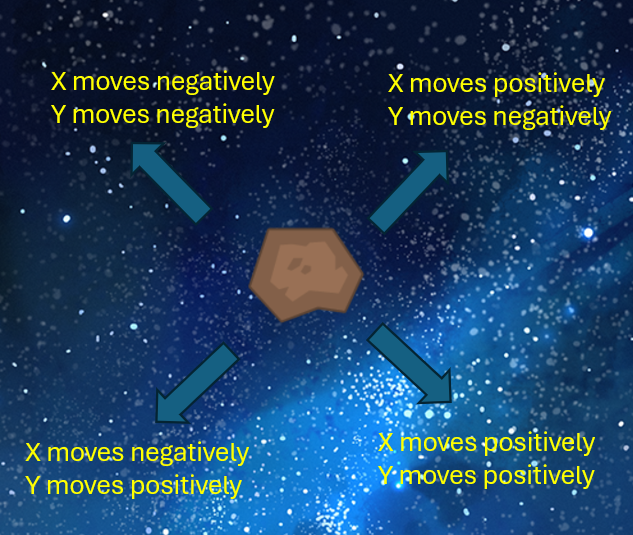
As the meteor moves towards the bottom right corner, both the x and the x coordinates will increase. To do this we can increment both the x and y values of the meteor within the update definition so that every time the update definition runs, we have the meteor appearing to move across the screen.
However, we also need to devise a way to have the meteor start off in a random direction. If we consider that the meteor essentially moves on a grid, and we can move x at any speed between -1 or 1, and we can do the exact same thing to y, then we can move the meteor horizontally by a certain amount, and vertically a certain amount each time the screen updates giving the appearance of it moving across the screen in a random direction.
import pgzrun
import random

# set up the size of your window. Pgzero needs these variables to be
# named in all capital letters.
WIDTH = 800
HEIGHT = 600


# We will use the Actor class to create various 'Actors' that will
# be used as game sprites and images to be displayed.
background = Actor('starbackground800x600')
meteor1 = Actor('meteorbrown')
meteor1.pos = 400,300
# Randomize the direction of the meteor
m1_dx = random.uniform(-1,1)
m1_dy = random.uniform(-1,1)
Notes on the code
In the above code we have imported random and assigned random directions to both the x and y coordinates.
Step 7
Now that we’ve given the meteor a direction, we are going to move it in that direction and make sure that it bounces off the edges of the screen. For that we will use the bounds of our screen in the WIDTH and HEIGHT variables to help us detect if our meteor has reached the edge of the window.
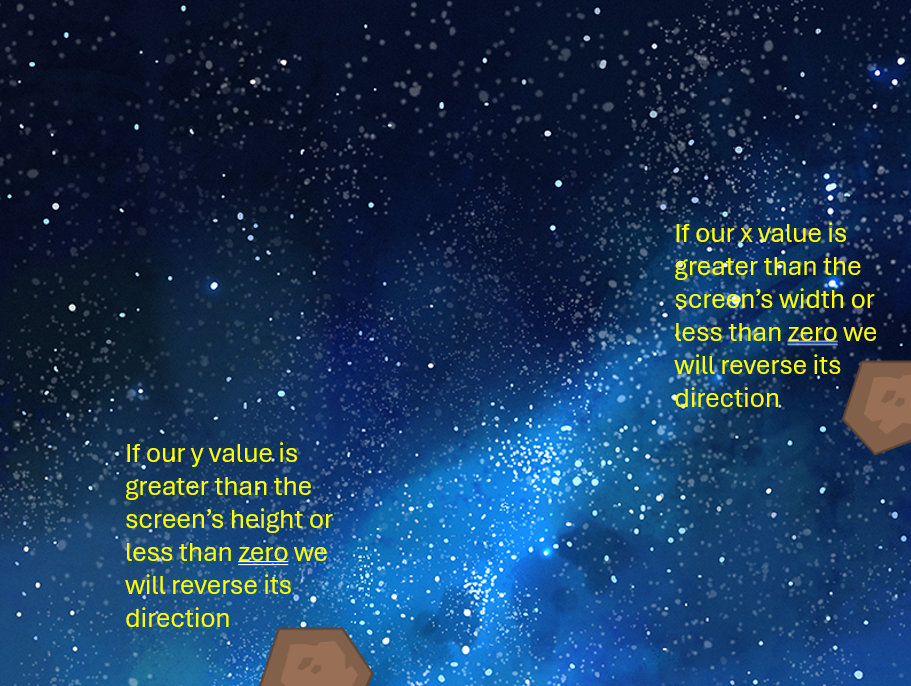
The code will look like this:
# This function updates variables and sprites as actions happen
def update():
    # declaring that we are using the following global variables
    global m1_dx, m1_dy

    # move the meteor's location by the direction amount
    meteor1.x += m1_dx
    meteor1.y += m1_dy

    # detect edge of screen and reverse direction
    if meteor1.x <0 or meteor1.x > WIDTH:
        m1_dx = m1_dx * -1

    if meteor1.y <0 or meteor1.y > HEIGHT:
        m1_dy = m1_dy * -1
You may notice that the meteor is moving really slow and every time you run a new program its speed changes slightly. Sometimes it moves faster than before. That is because we need to “normalize” its speed. To do that, we will add a speed variable and do a little math to get our meteor flying around the screen properly.
import pgzrun
import random
import math

# set up the size of your window. Pgzero needs these variables to be
# named in all capital letters.
WIDTH = 800
HEIGHT = 600

speed = 2

# We will use the Actor class to create various 'Actors' that will
# be used as game sprites and images to be displayed.
background = Actor('starbackground800x600')
meteor1 = Actor('meteorbrown')
meteor1.pos = 400,300
# Randomize the direction of the meteor
m1_dx = random.uniform(-1,1)
m1_dy = random.uniform(-1,1)

# normalize the direction
magnitude = math.sqrt(m1_dx**2 + m1_dy**2)
m1_dx = (m1_dx/ magnitude) * speed
m1_dy = (m1_dy / magnitude) * speed
Notes on the code
The math module is imported because we are using the square root function to calculate the length, or magnitude of the line created by the two points. Essentially with the points we have created a right angled triangle. Dividing each x and y coordinate of our direction by the line’s magnitude will ensure that they are in proportion to each other so that no matter what direction your trying to travel in, you will always travel at the same speed. After that we can then apply a speed at which we would like to travel by multiplying.